
Video
The Video element embeds YouTube, Vimeo, or self-hosted videos with support for custom players, preview images, and overlay icons.
Source dropdown options:
- YouTube
- Vimeo
- Media
- File URL
- Dynamic Data
Settings
Section titled “Settings”Source
Section titled “Source”-
Source (select) - The video source type. Options:
youtube,vimeo,media(media library),file(file URL),meta(dynamic data). Default:youtube. -
Iframe title (text) - Accessible title for the video iframe. Available for YouTube and Vimeo sources.
YouTube Settings
Section titled “YouTube Settings”Available when source is set to “youtube”:
-
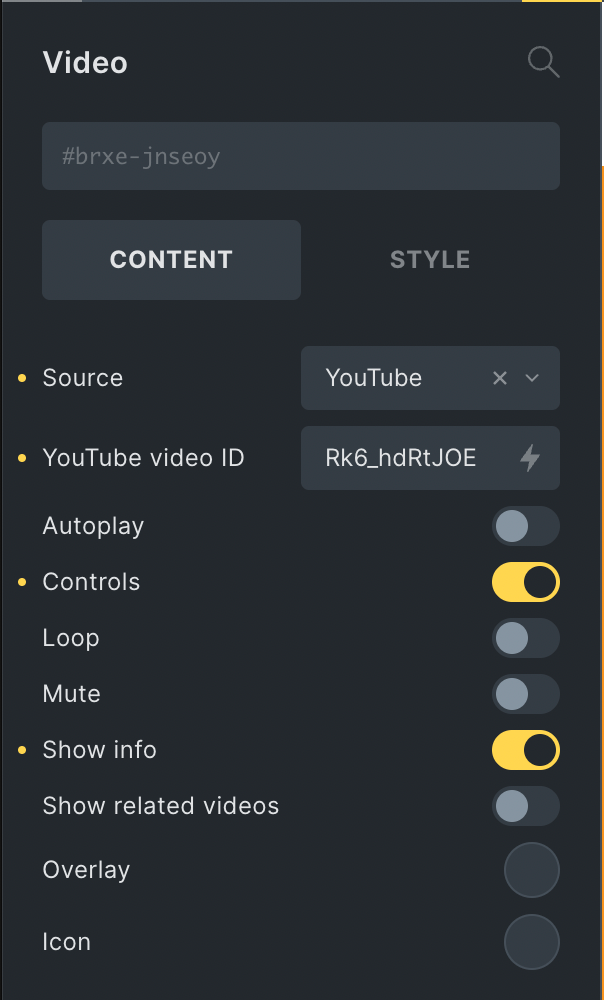
YouTube video ID/URL (text) - Enter the YouTube video ID or full URL. Default:
5DGo0AYOJ7s. -
Autoplay (checkbox) - Automatically play the video on page load. Not supported on mobile devices. Not available when preview image is enabled.
-
Controls (checkbox) - Show video player controls. Default: enabled.
-
Loop (checkbox) - Loop the video playback.
-
Mute (checkbox) - Mute the video audio.
-
Related videos from other channels (checkbox) - Allow YouTube to show related videos from other channels.
-
Do not track (checkbox) - Use YouTube’s privacy-enhanced mode (youtube-nocookie.com).
Vimeo Settings
Section titled “Vimeo Settings”Available when source is set to “vimeo”:
-
Vimeo video ID/URL (text) - Enter the Vimeo video ID or full URL.
-
Vimeo privacy hash (text) - Required for unlisted Vimeo videos.
-
Autoplay (checkbox) - Automatically play the video on page load. Not available when preview image is enabled.
-
Loop (checkbox) - Loop the video playback.
-
Mute (checkbox) - Mute the video audio.
-
Byline (checkbox) - Show the video byline. Default: enabled.
-
Title (checkbox) - Show the video title. Default: enabled.
-
User portrait (checkbox) - Show the user portrait. Default: enabled.
-
Do not track (checkbox) - Enable Vimeo’s Do Not Track feature.
-
Color (color) - Custom color for Vimeo player controls.
Preview Image
Section titled “Preview Image”Available when source is set to “youtube” or “vimeo”:
-
Preview image (select) - Choose preview image source. Options:
default(API),custom. The video iframe is lazy loaded after clicking the preview image. -
Custom preview image (image) - Upload/select custom preview image. Only available when preview image is set to “custom”.
-
Image size (select) - YouTube preview image size. Options:
default(120x90),medium(320x180),high(480x360),standard(640x480),maximum(1280x720). Only available for YouTube with default preview image.
Media/File Settings
Section titled “Media/File Settings”Available when source is set to “media”, “file”, or “meta”:
Media Source
Section titled “Media Source”- Media (video) - Upload or select video file from media library. Only available when source is set to “media”.
File Source
Section titled “File Source”- Video file URL (text) - Enter direct URL to video file. Only available when source is set to “file”.
Dynamic Data Source
Section titled “Dynamic Data Source”- Dynamic data (text) - Select dynamic data for video source. Only available when source is set to “meta”.
Video Controls
Section titled “Video Controls”-
Preload (select) - Video preload behavior. Options:
metadata,auto,none. -
Autoplay (checkbox) - Automatically play the video on page load.
-
Loop (checkbox) - Loop the video playback.
-
Mute (checkbox) - Mute the video audio.
-
Play inline (checkbox) - Play video inline instead of fullscreen on mobile.
-
Controls (checkbox) - Show video player controls. Default: enabled.
-
Disable download (checkbox) - Remove download button from controls. Firefox: Not supported.
-
Disable fullscreen (checkbox) - Remove fullscreen button from controls. Firefox: Not supported.
-
Disable remote playback (checkbox) - Remove remote playback button from controls. Firefox: Not supported.
-
Poster (image) - Set poster image for video SEO. Used as preview image for YouTube/Vimeo sources.
Overlay / Icon
Section titled “Overlay / Icon”-
Overlay (background) - Background styling for the video overlay.
-
Icon (icon) - Select icon to display on the video overlay.
-
aria-label (text) - Accessibility label for the icon or overlay.
-
Icon typography (typography) - Typography settings for the icon (size, color).
-
Icon padding (spacing) - Padding around the icon.
-
Icon background color (color) - Background color for the icon.
-
Icon border (border) - Border styling for the icon.
-
Icon box shadow (box-shadow) - Box shadow for the icon.
Known Issues
Section titled “Known Issues”Perfmatters Plugin Compatibility
Section titled “Perfmatters Plugin Compatibility”Enabling the “YouTube Preview Thumbnails” setting of the Perfmatters plugin might result in an empty space above the YouTube videos. A possible fix is adding the following CSS:
.brxe-video .perfmatters-lazy-youtube { margin-top: -56.25%;}