
Integration: Adobe Fonts
How to use Adobe Fonts with Bricks
Section titled “How to use Adobe Fonts with Bricks”All you need to do is provide Bricks with your Adobe Fonts “Project ID”.
First, visit the “web projects” section inside your Adobe Fonts account: https://fonts.adobe.com/my_fonts#web_projects-section
Each of your web projects contains a unique “Project ID”.
Copy the project ID of the web project whose fonts you want to use on your Bricks site.
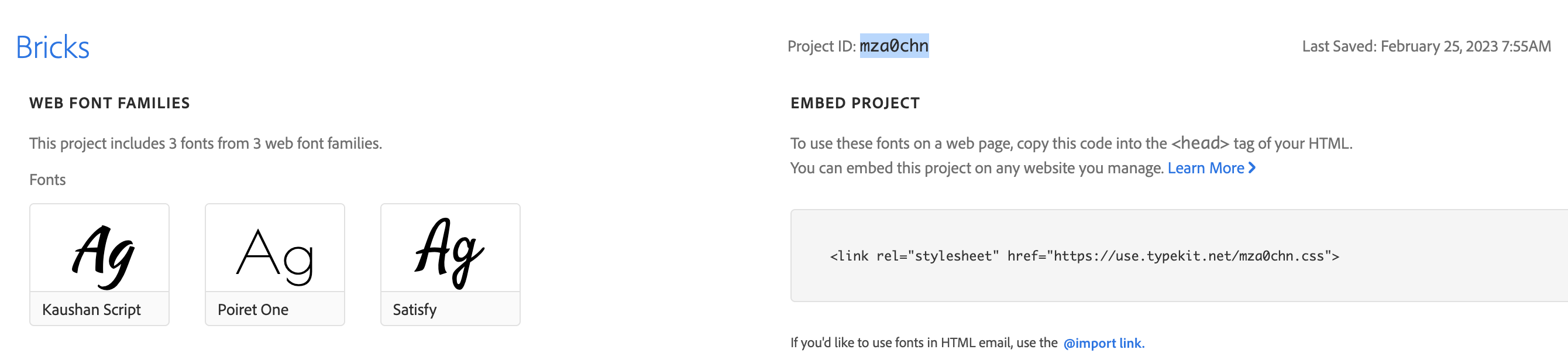
Copy the project ID into your clipboard
Next, inside your WordPress dashboard, go to Bricks > Settings > API keys and paste the project ID into the “Adobe fonts (Project ID)” input field. Then save your settings.
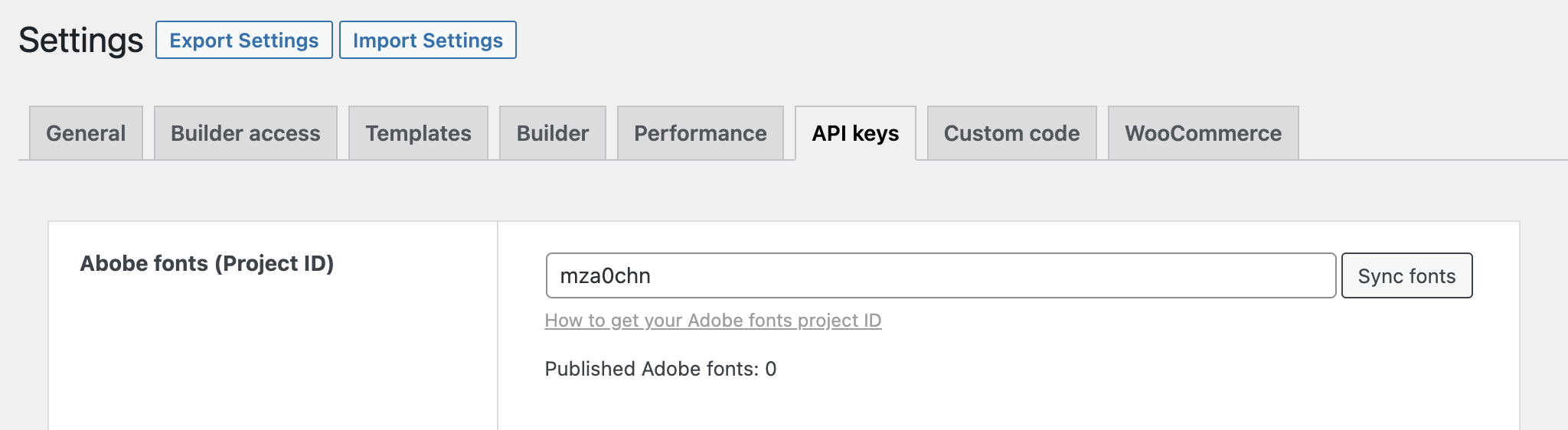
Click “Sync fonts” to fetch all fonts of this project
Next to the project ID input, a “Sync fonts” button should now be visible. Click it to fetch the Adobe fonts of this project. A success message should appear & the “Published Adobe fonts” counter should reflect the number of published fonts.
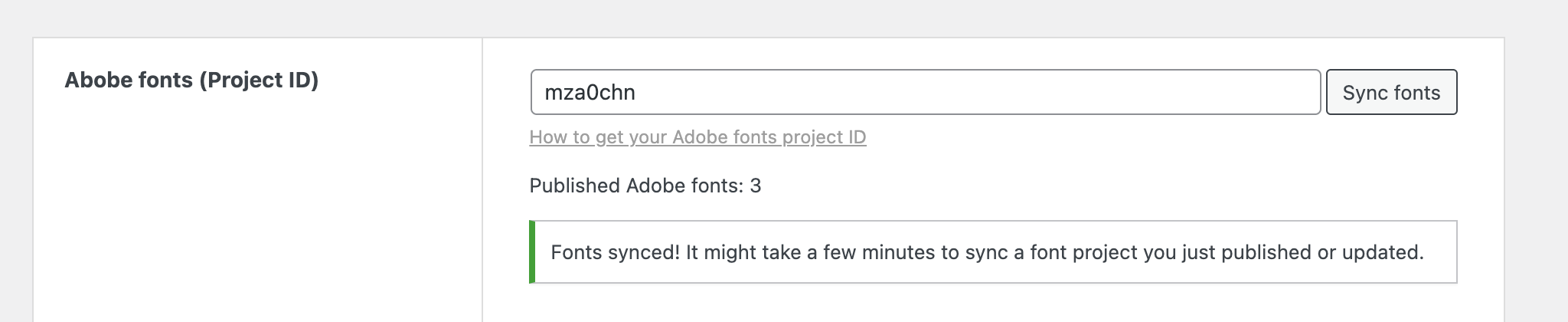
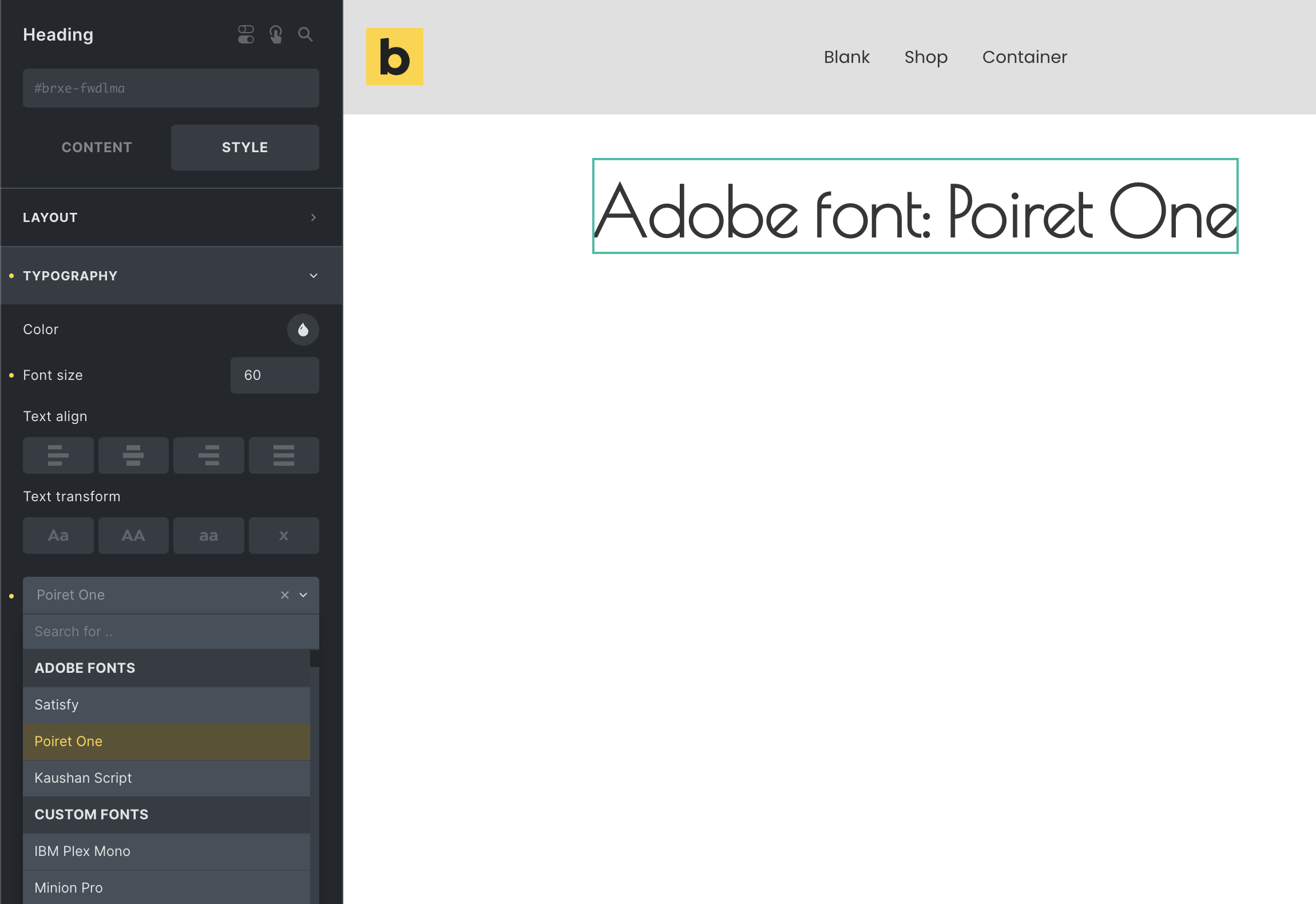
Fonts are now synced & available in the builder
Those fonts are now available inside the builder in any font-family dropdown:
Variable fonts
Section titled “Variable fonts”Bricks also provides a new font-variation-settings. This CSS property allows you to control the four-letter axis names of a variable Adobe font. Such as the wght, wdth, slnt, and ital.
For more information about the specifics please visit https://developer.mozilla.org/en-US/docs/Web/CSS/font-variation-settings
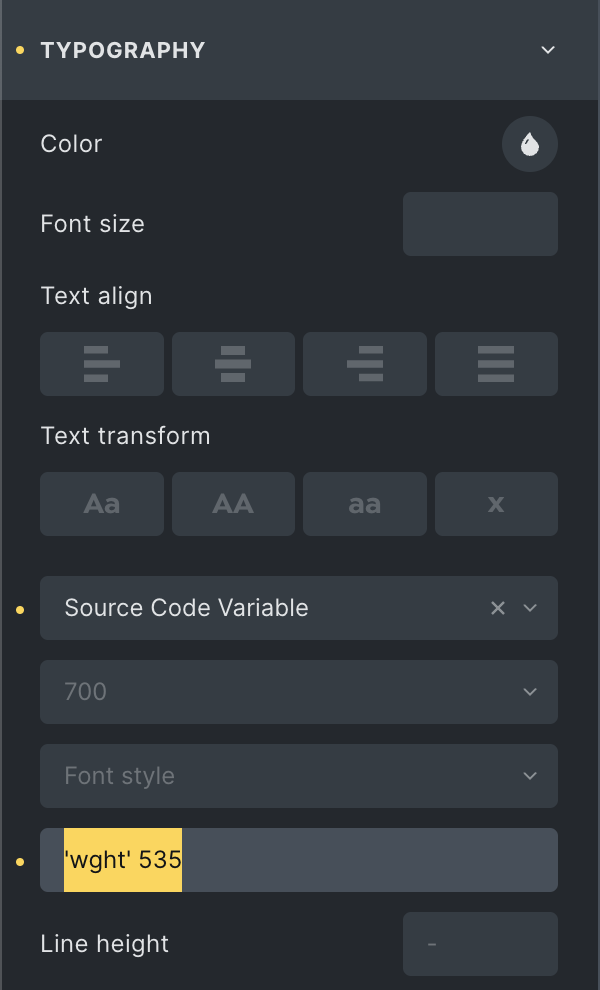
Variable Adobe font with a custom font-weight (axis: “wght”) of 535
You can view available variable Adobe fonts by selecting “Variable Fonts” under “Font technology on https://fonts.adobe.com/fonts.