
Global Class Manager
Bricks’ Global Class Manager is a powerful new feature for creating, editing, deleting, and categorizing CSS classes directly inside the builder. This tool simplifies managing global styles, allowing you to apply consistent designs across your entire project easily.
Accessing the class manager
Section titled “Accessing the class manager”To access the Class Manager click the “Gear” icon in the top-left side o f the builder toolbar to open the “Style Manager”. Then, clicking the “CSS 3” icon in the sidebar opens up the Class Manager.
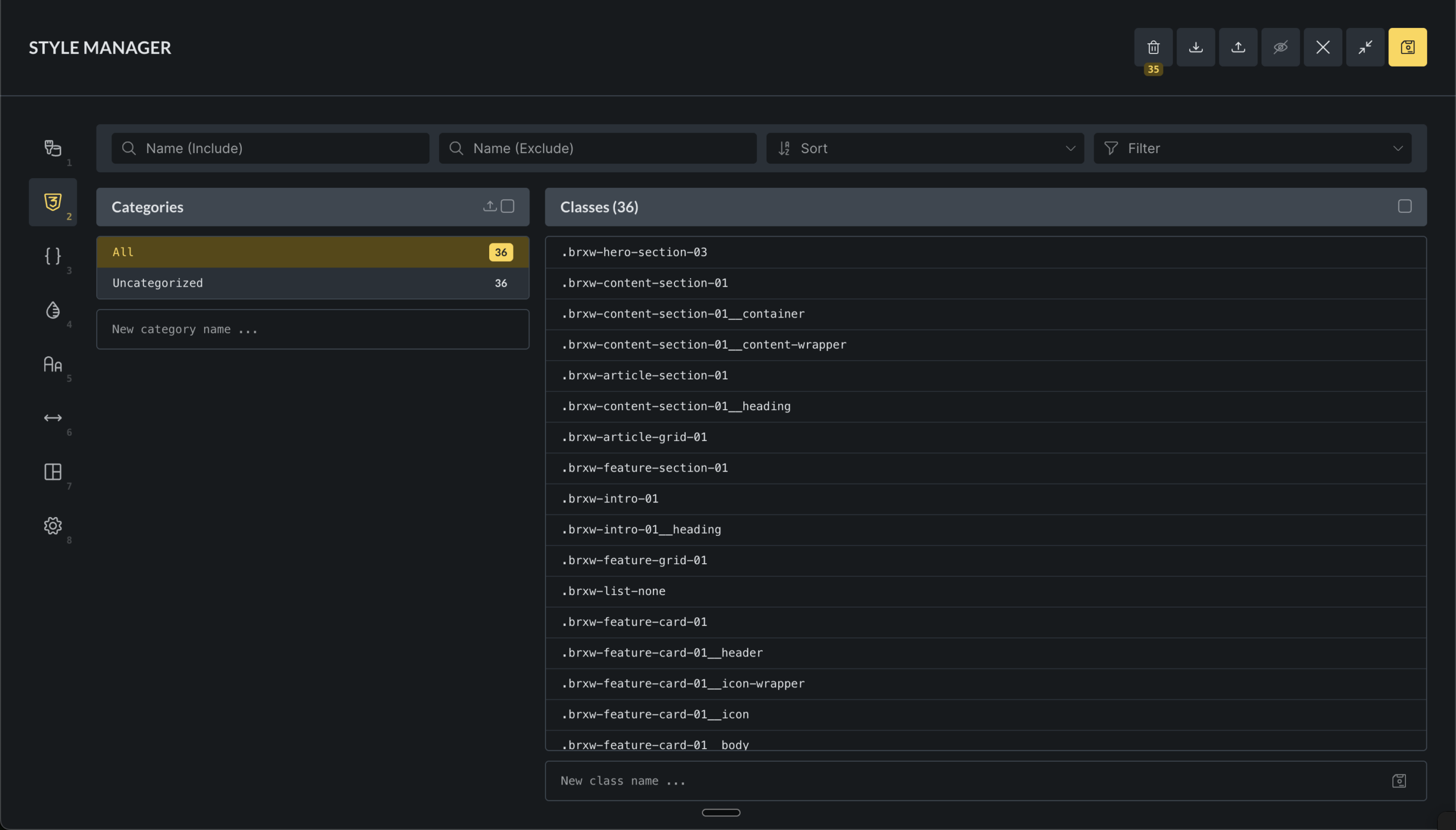
The Class Manager can be disabled under Bricks > Settings > General > Disable global class manager.
Core functionalities
Section titled “Core functionalities”Class creation and management
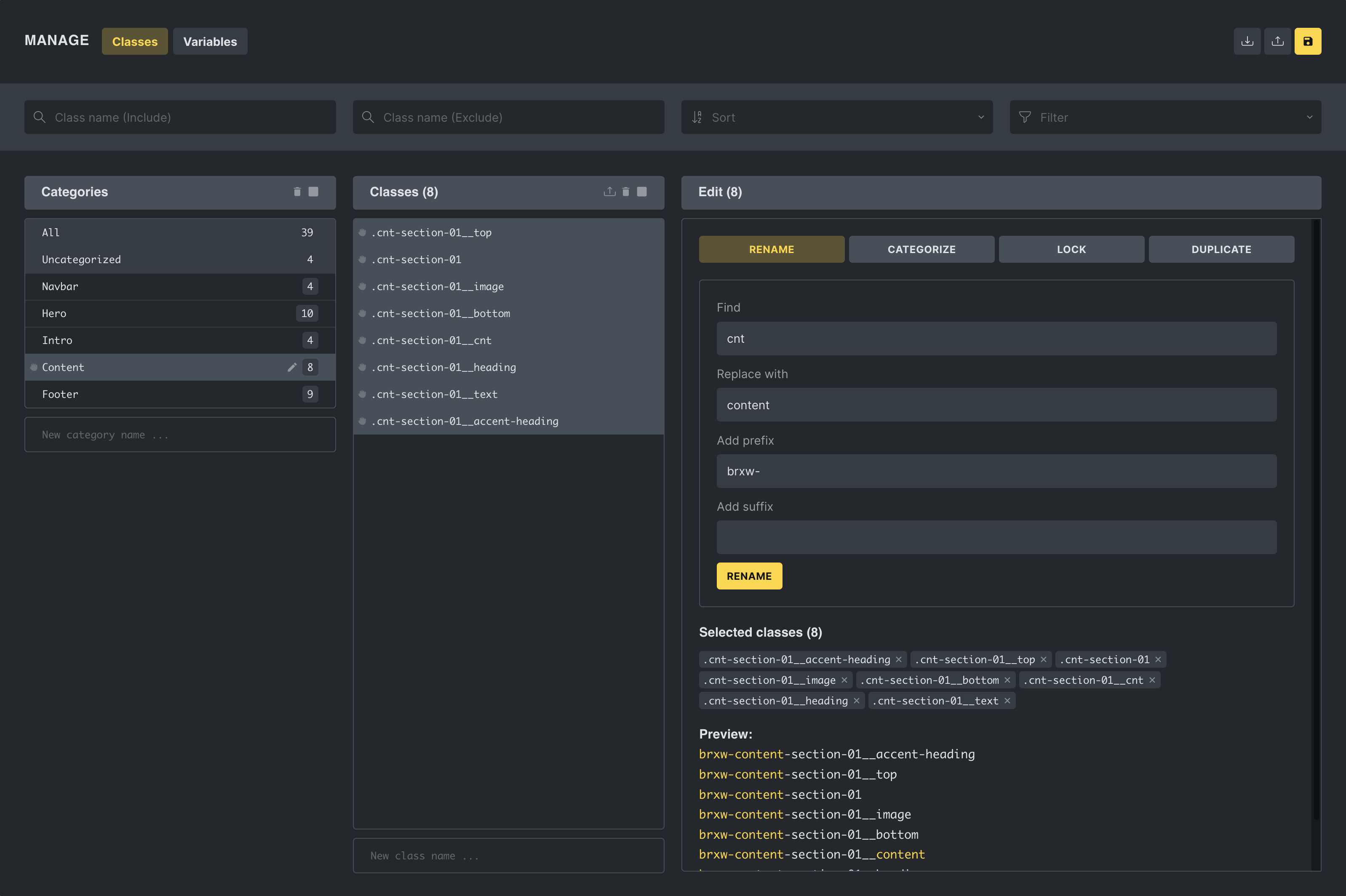
Section titled “Class creation and management”In the Global Class Manager, you can seamlessly handle your CSS classes through a unified interface where they can:
- Manage classes: Create new CSS classes or update existing ones. Delete classes that are no longer needed.
- **Order & categorize: **You can categorize classes for better management and order classes or categories via drag-and-drop for preferred structuring.
- Bulk actions: When two or more classes are selected, the editor enables users to perform mass actions such as renaming, duplicating, locking, and unlocking classes. These actions include the ability to find and replace strings or add prefixes or suffixes to class names.
Search and sorting capabilities
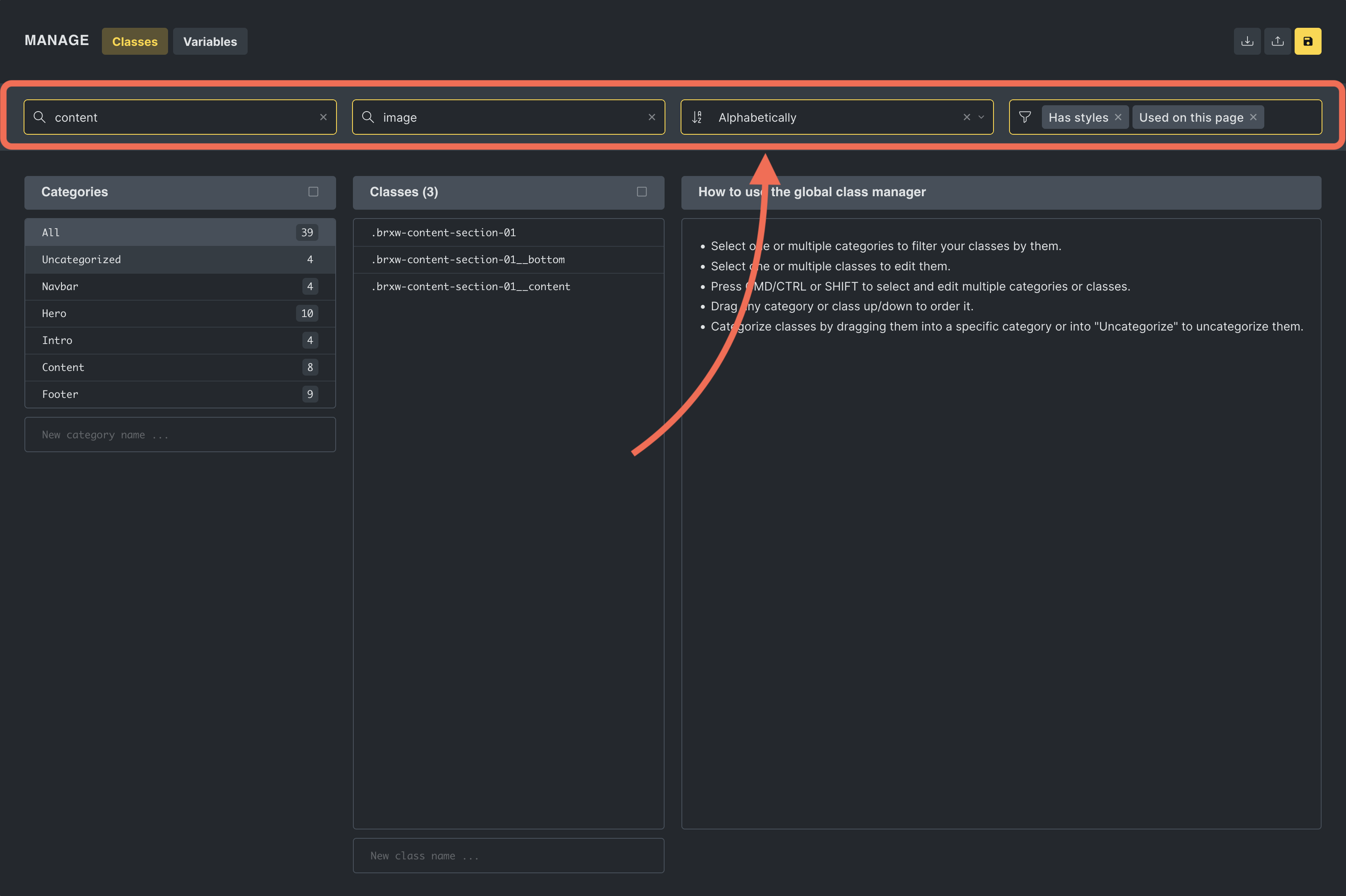
Section titled “Search and sorting capabilities”In the header of the Global Class Manager, you can filter classes by:
- Including or excluding specific strings.
- Sorting options: Alphabetically sort classes for better organization.
- Filtering based on usage and properties: Filter options include “Used on this site”, “Unused on this site”, “Used on this page,” “Unused on this page,” “Has styles,” “Has no styles,” “Locked,” and “Unlocked.”
Exporting and importing classes
Section titled “Exporting and importing classes”The Global Class Manager facilitates the exporting and importing of CSS classes, making it easier to maintain a consistent styling framework across various Bricks projects.
Exporting classes
Section titled “Exporting classes”Users have two options for exporting classes:
- Export all: By clicking the “Export” button at the top of the manager, users can export all classes currently managed within the system as a JSON file.
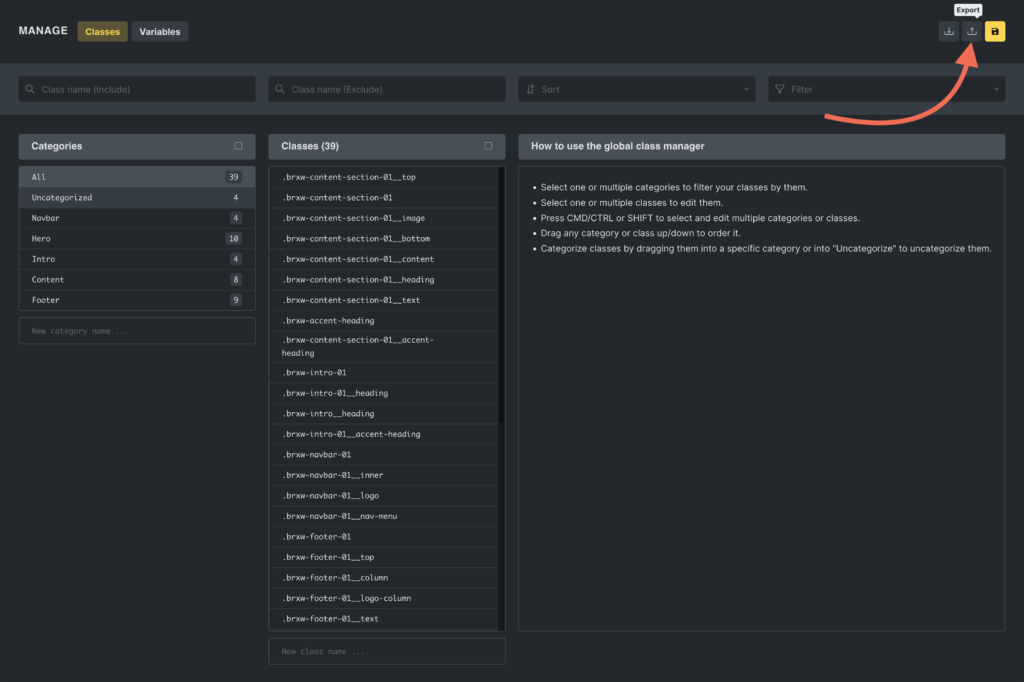
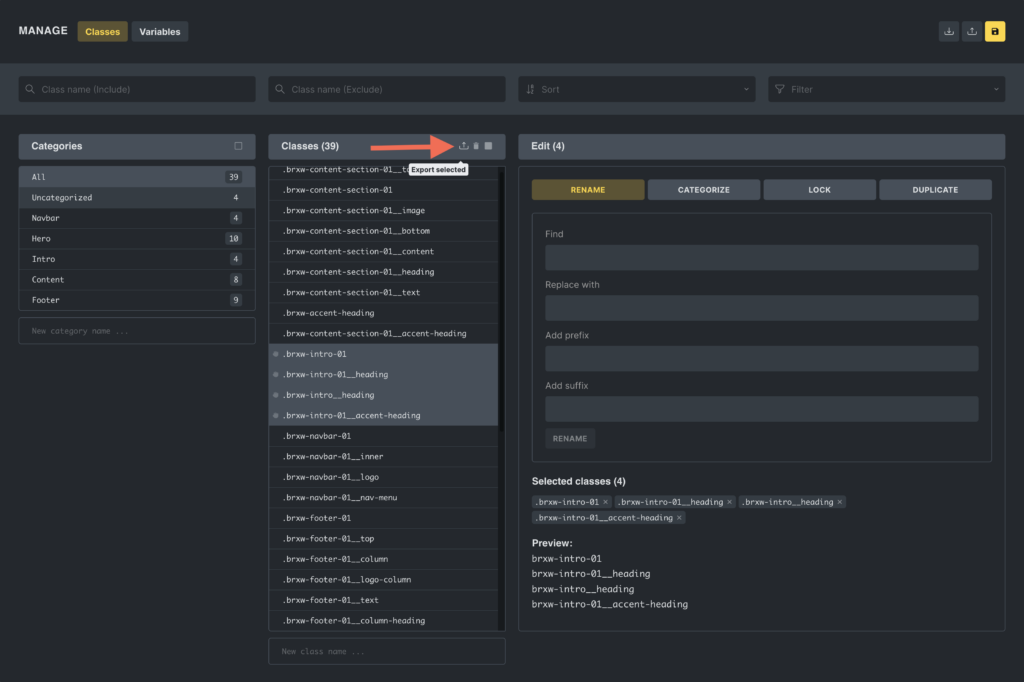
- Export selected: Users can also choose specific classes to export by selecting them and then clicking the “Export selected” icon within the classes column header. This allows for more granular control over which classes are included in the exported JSON file.
Importing classes
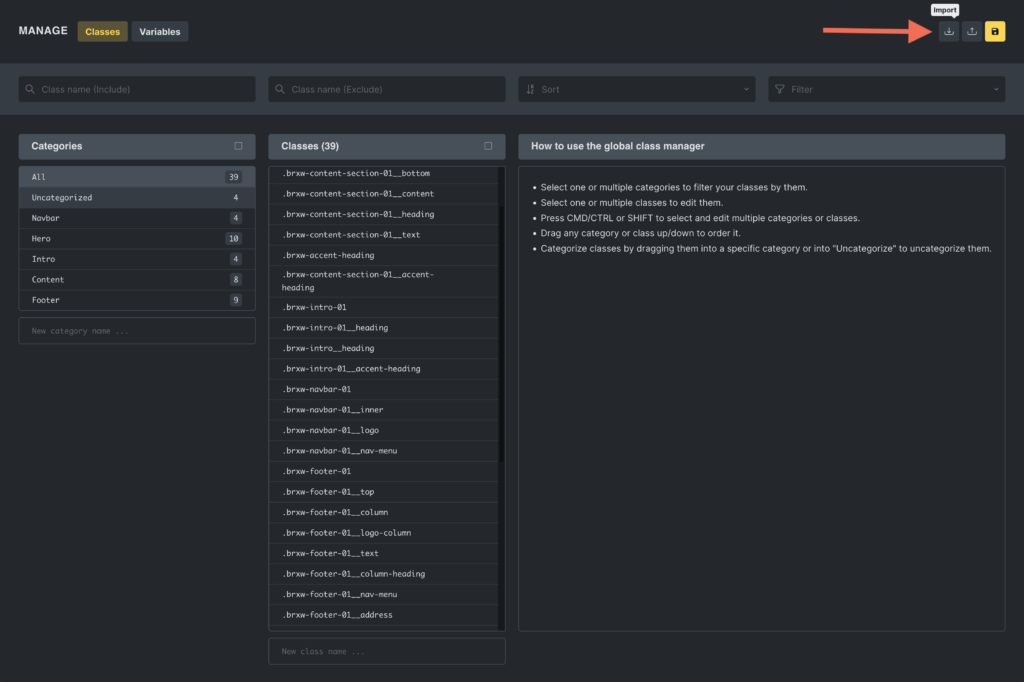
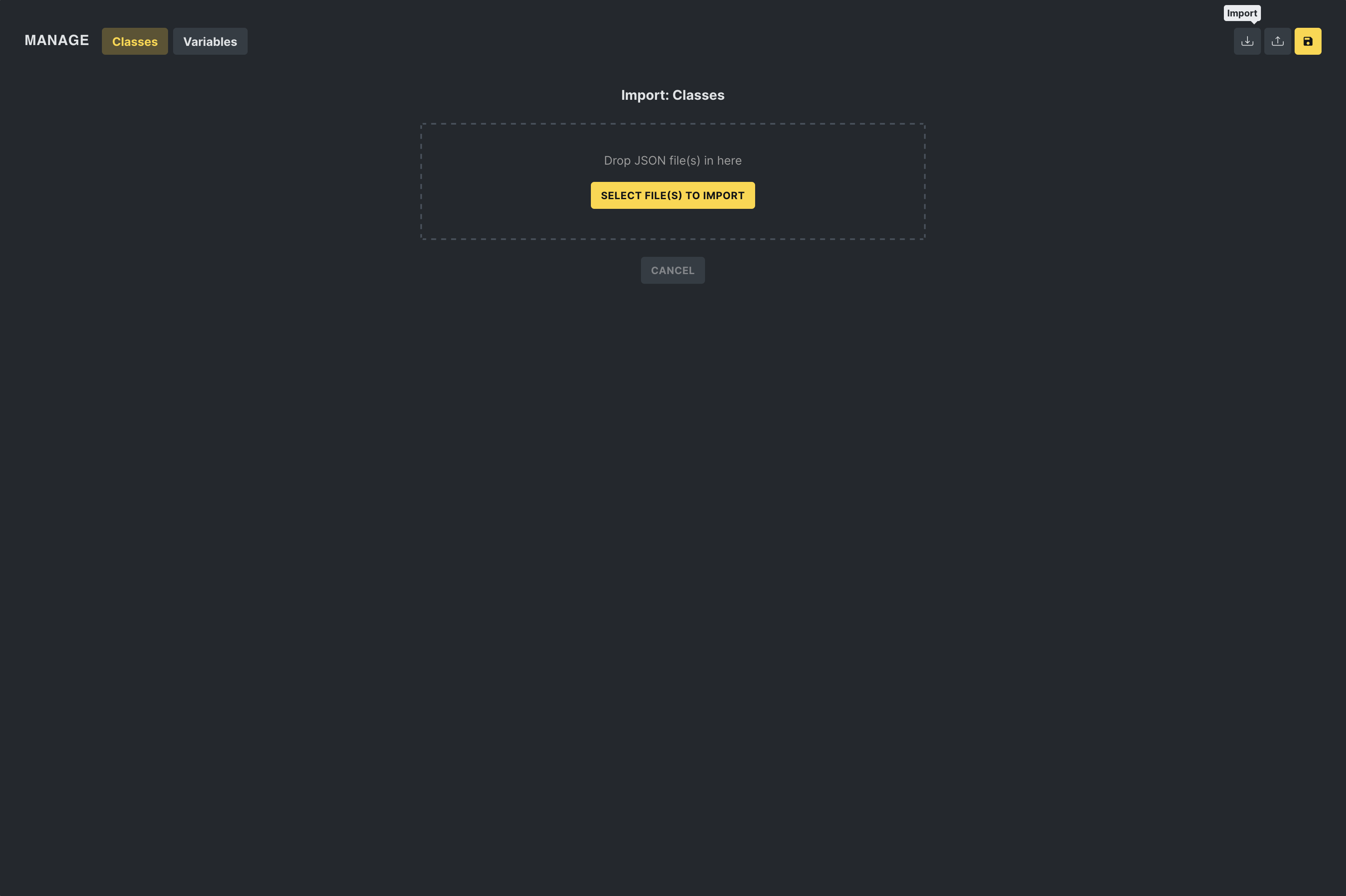
Section titled “Importing classes”In the “Import” popup, users can drag and drop a JSON file containing exported classes, streamlining transferring classes between projects.
Managing imported classes
Section titled “Managing imported classes”If you’re importing global classes and need to handle conflicts or organize new classes before they are added to your project, check out the Global Class Import Manager. This feature, introduced in Bricks 1.12, provides a structured way to resolve conflicts and categorize imported classes, ensuring a smooth and controlled workflow.